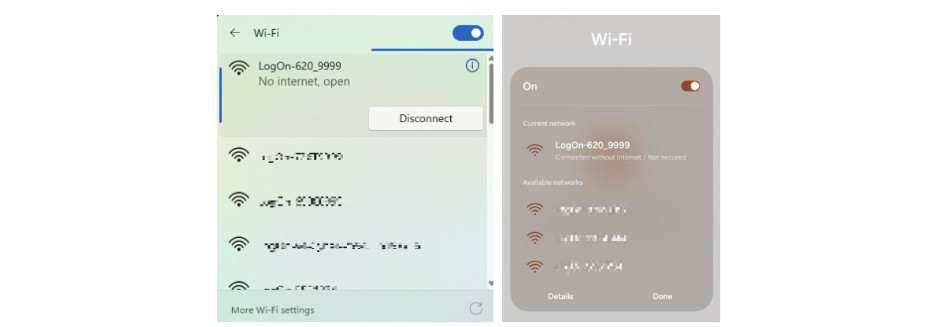
Key on the machine
Locate and connect to the Wi‑Fi network named with the machine’s serial number.
The Wi-Fi network name becomes available approximately 1 to 2 minutes after turning on the ignition key.
You can find the machine serial number at any of the following:
- cab computer telematics screen
- serial number plate inside the cab near one of the doors
3.2 Log in to the LogOn Portal
Open a web browser.
Enter the following address: http://192.168.2.1
Log in using owner account credentials. The default is as follows:
Username: Owner
Password: Owner7Q
(Password is case-sensitive) NOTE: If telematics 4.0 or 4.1 is on the machine, you will need to use the Owner password you set up the first time you accessed LogOn. If this is the first time you are accessing LogOn, you will need to create a password.
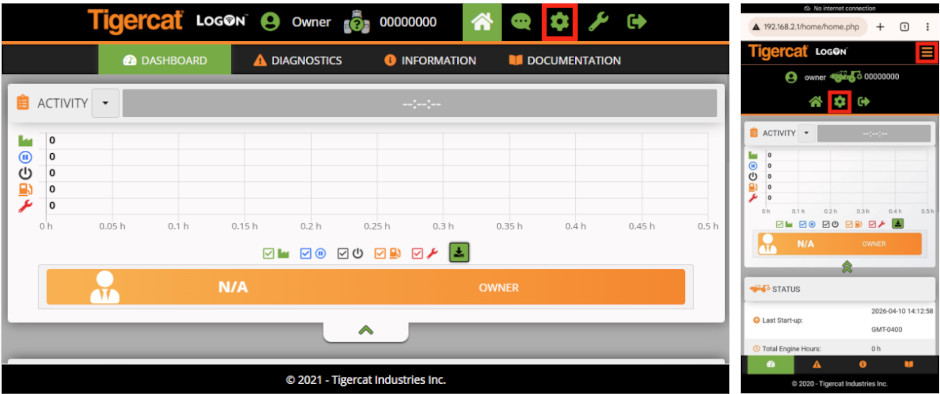
Select the Settings icon in the top-right corner.
Open the SYSTEM tab using the left or top navigation panel.
Locate the Current Firmware panel, using the double chevrons if necessary.
Take note of the Firmware Version.
4 Upgrade Bundle
Proceed to the appropriate steps based on the firmware version
4.1 Verify Monitor Version (Version 2.x only)
In the CURRENT SYSTEM panel, confirm the Monitor Version is 1.7 or lower.
Click Start Update Manager.
4.2 Install Bridge/Certificate Bundle
Click Start Update Manager / Upload File for Update.
Select Choose File.
Browse to and select the appropriate file based on the firmware version:
Version 2.0 – 2.9: “Bridge_SysMon.tsm” (downloaded at step 2.4.1)
Version 3.0 – 3.1: Not applicable (no bridge update required, proceed directly to Step 5)
Version 4.0 – 4.1: “146608BCERT-V4-CERT-UPDATE.tdc” (downloaded at step 2.4.3)
Click Upload
Confirm the update when prompted.
If applicable, monitor the progress bar until completion.
Temporary Wi-Fi Disconnection
If the firmware version is within 2.0 – 2.9:
- The system will reboot and disconnect.
- Reconnect to the Wi-Fi network named:
LogOn-ERROR-XXXXXXXX
- Navigate again to: http://192.168.2.1
If the firmware version is within 4.0 – 4.1:
- The system will prompt for a documentation update.
- There will be no confirmation for the update, just move to the next step.
5 Install New Firmware
Follow the steps per the firmware version
Version 2.0 – 2.9: verify the Monitor Version is 1.8.
Version 3.0 – 3.3: Verify the Monitor Version is 2.0 or higher
Select Choose File
Browse to and select the appropriate file based on the current firmware version:
Version 2.0 – 2.9: “143261BR01-V2-V4_2.tsm” (downloaded at step 2.4.1)
Version 3.0 – 3.3: “143262BR01-V3-V4_2.tsm” (downloaded at step 2.4.2)
Version 4.0 – 4.1: “146608BR00-V4-V4_2.tfw” (downloaded at step 2.4.3)
Confirm the upload in the prompt.
Temporary Wi-Fi Disconnection
- The system will reboot and disconnect. This may take approximately 6 minutes.
- Reconnect to the Wi-Fi network named:
LogOn-XXXXXXXX
- Navigate again to: http://192.168.2.1
Update Completion
Log back into the portal,
Username: Owner
Password: Owner7Q
Create new Owner and Operator passwords when prompted. If you forget your password, reach out to a Tigercat dealer technician to reset it.
Open Settings and open the SYSTEM menu.
Verify Firmware Version: 4.2 or higher
The firmware upgrade is now complete.
6 Support
If any issues are encountered during the upgrade process, contact: